Showing posts with label Android. Show all posts

Saturday, March 1, 2014

How To Unlock Your Android Phone Pattern Lock

This tutorial will tell you how to unlock or reset your android device lock pattern if you have forgotten your lock pattern and can remember your Google account.
Pattern Lock
Pattern Lock

If you have synchronized your android device with Google account before then you just need to sign in your Google account and the lock pattern will be removed, but if you have not sync your device with Google or you have forgotten your Google ID then no need to panic just follow the step below and you will reset your android device and lock pattern will be removed.
Steps  to recover lock pattern of any android device phone
  1. Switch off the phone.
  2. Now hold this buttons all together at the same time “Volume up + Home Key + Power Button” until the phone boots (if you device doesn’t have a home button just hold together volume up key and power key)
  3. Now a screen like DOS will come up with different options
  4. Use the volume key to move up and down then scroll down to “Restore Factory Defaults” or “Delete all User Data” depending on which is on your device.
  5. After clicking on the settings above, now scroll down to “Reboot System Now ” and wait for your phone to reboot.
Now your phone will reboot and all lock pattern removed.

Friday, February 21, 2014

Mobilink GPRS/INTERNET Settings for Android


Mobilink / Jazz users who have recently got an Android phone might have some trouble setting up the GPRS on your phone. Well, I’m a Jazz user as well and figured out where and what APN settings to put in.
Follow the steps below to get your GPRS working on your Android phone!
  1. Go to Settings > Wireless & networks > Mobile networks >Access Point Names.
  2. Press the ‘Menu’ key and select “New APN”.
  3. Now use the following settings:
    Name: Mobilink (anything you like)
    APN: connect.mobilinkworld.com
    MCC: 410 (should be there by default)
    MNC: 01 (use whatever is there by default)

Sunday, February 16, 2014

Use Mobile Internet On PC Using Android

Now you can use your Internet data plan which is active in your phone on your Computer. Sometimes there is a situation when your broadband / Dongle / Internet connection is not working. In such cases you have to perform your works by using your phones.

Although Android phones have capability of performing almost every task that you may do using a computer still computers are better in many ways as they have support for USB , specialized softwares and most importantly ease of use. So why to depend on your phone internet when you can even use it in your Computer.


 There are four very efficient ways to use your mobile internet in PC. Which includes two ways that doesn't require any specialized software installed in your computer as well as your phone because Android phone has inbuilt features to share internet.

4 WAYS TO USE MOBILE INTERNET ON PC


 1)USE INTERNET FROM ANDROID USING TETHER


Tether is a specialized software that allows you to use internet of your Android phone to computer. 
First of all download and install Tether in your computer: DOWNLOAD TETHER
  • Before you run tether in your computer , connect your phone via USB and make sure that USB Debugging is enabled in your phone.
  • If not , you can enable USB Debugging by navigating to Setting > Applications > Development and mark USB Debugging
  • Now Install Tether in your computer. During installation it will ask several times for confirmation click Yes and Trust everytime. It will install Tether in your phone at the same time so make sure that your phone is connected to computer during installation
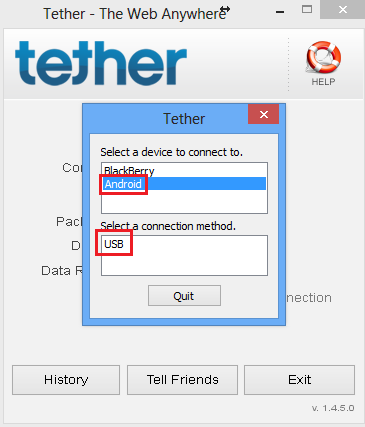
  • After installation choose your device i.e. Android and mode i.e. USB
Once it shows that you are connected to Android , you can run any browser and start using internet on your computer.


This window shows you confirmation and status of your internet connection . If you need to check your amount of data sent / received during active session you may refer to this window anytime.


2. USE INTERNET FROM ANDROID USING USB


  • Connect your Android phone via USB to Computer 
  • Press Home / Applications button and go to Settings
  • Go to More and select Wireless & Networks section 
  • Now open Tethering & Portable Hotspot
  • Check USB Tethering to establish a USB data connection with your computer and Uncheck the  sever the connection option
You are now all set to use internet on your computer simply using USB cable.


 3. USE INTERNET FROM ANDROID USING BLUETOOTH HOTSPOT


  • Connect your Android phone via USB to Computer 
  • Press Home / Applications button and go to Settings
  • Go to Bluetooth From Wireless and Network Section
  • Turn On Bluetooth and make it Discoverable
  • Now Come to your Computer , Click On Start Button go to Control Panel
  • Click on Hardware & Sound then on Devices And Printers
  • Finally click on Add a device and select your Android phone from list to pair it & click Next
  • Coming back to phone , go to Wireless and Network Section & CheckBluetooth tethering
In this way you can use your mobile net in computer using Bluetooth tethering


4. USE INTERNET FROM ANDROID USING PORTABLE HOTSPOT


  • Press Home / Applications button and go to Settings
  • Go to More and select Wireless & Networks section 
  • Now open Tethering & Portable Hotspot and check Portable Wifi Hotspot
  • Tap on Configure Wifi Hotspot & Enter any name as your SSID
  • Set security and password for your Wifi Hotspot & Save it.
Your phone is now generating Wifi Signals which can be used by your laptop.